




What Will You Read in This Blog?
- What spike testing actually means and when you need it
- Real-world examples where spike testing is critical
- Key differences between spike testing, load testing, and stress testing
- How to configure JMeter for proper spike tests (the right way)
- Important settings: ramp-up = 0, startup delay, loop count & duration
- Best practices and common mistakes to avoid
- When to combine spike testing with other performance test types
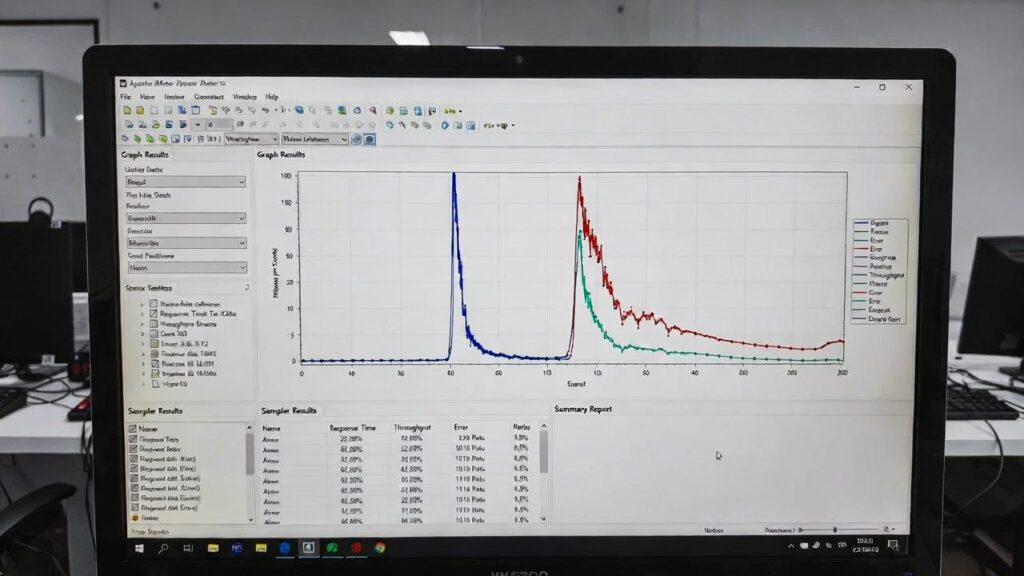
This blog is a continuation of our previous article: Load and Stress Testing Using JMeter
We also covered load & stress testing in this YouTube video:
What is Spike Testing?
Spike testing is a type of performance testing that evaluates how an application behaves when it is suddenly subjected to a very large number of users or transactions in a very short period of time.Unlike gradual load testing (where users increase slowly), spike testing simulates real-life situations such as:
- Flash sale starting at exactly 12:00 PM
- Ticket sales for a popular concert going live
- Live streaming event announcements
- Social media viral posts driving instant traffic
- Marketing campaigns or influencer posts going live
- Payment gateway failures causing retry storms
Goal of spike testing:
Determine whether the application recovers gracefully after the spike, or if it crashes, slows down dramatically, or loses transactions.
Example Scenario
Imagine an e-commerce website that normally has 200-400 concurrent users. During Black Friday, the client expects a sudden jump to 1,000-1,500 users within 5–10 seconds when the sale starts.
Your task as a performance tester is to verify:
- Does the site stay responsive during the spike?
- Do login / checkout requests succeed or timeout?
- Does the system recover quickly once the spike ends?
- Are there any errors (5xx, connection timeouts, database deadlocks)?
How to Perform Spike Testing in JMeter
1. Create a Basic Test Plan (same as load testing)
- Open JMeter GUI
- Add Test Plan
- Add Thread Group
- Add HTTP Request samplers (login, search, add-to-cart, checkout…)
- Add Listeners (Aggregate Report, View Results Tree: for debugging only)
- Add Summary Report / Aggregate Report / Backend Listener for final results
2. Crucial Settings for Spike Testing
| Setting | Recommended Value for Spike Test | Why? |
|---|---|---|
| Number of Threads | 500, 800, 1000, 1200, 1500… (increment) | Simulate different spike intensities |
| Ramp-Up Period | 0 seconds | All threads start simultaneously – this is the key! |
| Loop Count | 1–5 (or Forever with duration limit) | Usually 1 loop is enough for spike |
| Scheduler | Enable + set Duration | Control how long the spike lasts (e.g. 30s–2min) |
| Startup Delay | 5–15 seconds | Gives time to start monitoring tools before the spike hits |
3. Recommended Test Scenarios
| Scenario | Threads | Ramp-Up | Duration | Expected Outcome |
|---|---|---|---|---|
| Baseline | 100 | 60 s | 5 min | Normal behavior (reference) |
| Moderate spike | 500 | 0 s | 60 s | Should handle gracefully |
| Target spike | 1000 | 0 s | 60 s | Business-critical – must not crash |
| Extreme / Breakpoint | 1500 | 0 s | 60 s | Expected to degrade – observe recovery time |
| Recovery phase | 200 | 30 s | 5 min | After spike – does system stabilize quickly? |
4. Best Practices & Common Mistakes
Do:
- Always monitor backend resources (CPU, memory, DB connections, queue length)
- Use non-GUI mode + BlazeMeter / Taurus / Jenkins for real results
- Record and replay realistic user journeys (not just one page)
- Add think times (only between actions, not during the spike itself)
- Run spike tests multiple times: look for consistency
- Test with and without caching (CDN, Redis, etc.)
Avoid:
- Ramp-up > 0 seconds → that’s load testing, not spike
- Running spike tests in GUI mode for large thread counts
- Forgetting to clear test data / DB between runs
- Testing only one endpoint (usually login or checkout is the bottleneck)
Conclusion
Spike testing is not just about “throwing 1000 users at once”. It’s about understanding how your system behaves when real-world sudden traffic events occur and whether it can recover quickly afterward.By setting ramp-up = 0 and carefully increasing thread counts, JMeter becomes a powerful tool for simulating these critical scenarios.
If you want to see the complete setup and execution in action, check out our latest video in the Performance Testing playlist: Video Geeks – Performance Testing Series
Happy testing and stay prepared for those unexpected traffic spikes!
#AI, #spike testing, #jmeter tutorial, #performance testing, #load testing, #stress testing, #jmeter spike test, #sudden traffic testing, #jmeter performance